Memorizing and reviewing knowledge in SuperMemo
Opening a collection
Before you can start learning, you have to run SuperMemo 2006/2008 and open a knowledge collection. Here’s an easy way to do it:
- Run SuperMemo 2006/2008 by clicking its shortcut on your desktop or in your Start Menu.
- In the SuperMemo window, choose File | Open collection.
- In the window that appears, find the collection file (for example, if your collection is called “English”, the name of the file will be English.kno) and double-click it.
You can also go to the folder which contains the collection and find the correct .kno file (it should have a blue icon). If you double-click the file, SuperMemo will automatically run and open your collection.
Items, topics and elements
Knowledge in SuperMemo is stored in small pieces called items. An item has two parts: a question (Q) and an answer (A). For example, it may look like this:
- Q
- He ____ the word in a dictionary.
- A
- He looked up the word in a dictionary.
(There are many other kinds of items. You can learn about them on our page about making items.)
SuperMemo also lets you create topics, which are basically pages with text (e.g. a part of an article). Topics do not have a question or an answer. You only see them once and you do not review them in a structured way. You can go back to any topic when browsing your collection. If you’re using SuperMemo to learn languages, you don’t need to use topics.
Items and topics are both called elements.
Memorizing and reviewing knowledge
SuperMemo helps you review your knowledge effectively, so that it stays in your memory at a minimum effort. Before you can review an item, however, you must memorize it.
- Items that you received in a ready-made collection are memorized with the Learn button. You can do it today or you can do it three months from now.
- Items that you add yourself are memorized automatically when you add them in SuperMemo 2002 or later. In earlier versions of SuperMemo for Windows and in SuperMemo for Pocket PC, you memorize your own items with the Learn button, just like ready-made items.
After you memorize an item, it enters the “learning process”. From now on, SuperMemo will make decisions about that item. Specifically, it will examine the grades you gave yourself for the item and will schedule reviews to keep the item in your memory (but not too often, so as not to waste your time).
You will review the item when SuperMemo tells you to — for example, on September 23. No sooner, no later. Another item may be scheduled for September 24, yet another for September 25, etc. When you review the item, SuperMemo will schedule another review, depending on your grade.
Use SuperMemo every day!
When you have memorized many items, there will be some items waiting to be reviewed every day (these are called outstanding items). So you have to open your SuperMemo collection every day and review all the items scheduled for today. Here are two good reasons to use SuperMemo every day:
- If you don’t open your collection on one day, you may simply forget the items that you were supposed to review.
- If you don’t review your items on September 23, then, on September 24, you will have to review the items from September 23 and from September 24.
How repetitions work
In SuperMemo jargon, every time you memorize or review an item is called a repetition. (So when you memorize an item, you’re making the first repetition of that item.) When you do a repetition, you go through the following steps:
- Press the Learn button to start learning.
-
SuperMemo shows you a question. In this screenshot, you can see a
definition-word item, so
the question is a definition:
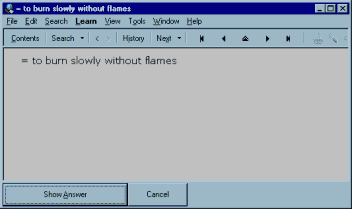
- Try to answer the question. Here, the answer is a word. You should pronounce the word and think about its spelling.
-
Press the Show answer button. The collection shows you the correct
answer (and some additional information):
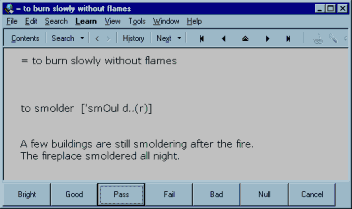
- Compare your answer with the correct answer. Did you think about the right word? Were your spelling and pronunciation correct?
-
Give yourself a grade. Simply click one of the buttons:
Bright, Good, Pass,
Fail, Bad, or Null.
You can also use your keyboard and press 5 for Bright,
0 for Null, etc. (How to choose the right grade? Read the next section.) After you choose a grade,
the buttons at the bottom of the window will look like this:
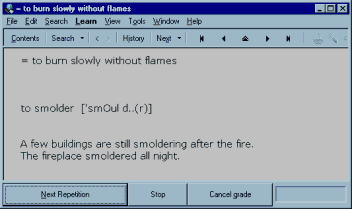
- Read any additional information in the answer field. Here, there are two example sentences with the word smolder to improve your understanding of the word.
- Press Next repetition to go to the next item and repeat these steps. You can also press Stop if you don’t want to review or memorize any more items. If you think you gave yourself the wrong grade, you can change it by pressing Cancel grade.
Note: The process of reviewing sentence items is different, because the learner’s “answer” is not a specific word, but the understanding of the sentence (and attention to the problematic words and structures in it).
How to grade yourself?
Here’s when you should use each grade:
- 5 (Bright): You gave the correct answer quickly.
- 4 (Good): You gave the correct answer, but you were thinking of other answers, too. (You hesitated.)
- 3 (Pass): You were thinking for a very long time or your answer was not completely correct.
- 2 (Fail): Your answer was wrong (or you gave no answer), but you “almost” said the correct answer. You’re thinking “I knew it!”.
- 1 (Bad): Your answer was wrong (or you gave no answer), but when you saw the correct answer, you recognized it.
- 0 (Null): Your answer was wrong (or you gave no answer), and you don’t even recognize the correct answer. You’re thinking “What? This is the right answer? I’ve never seen it before in my life!”
The most important thing that you should know is the difference between remembering and forgetting. Grades 5, 4 and 3 mean that you remembered the item. Grades 2, 1 and 0 mean that you had forgotten the item.
If you use SuperMemo regularly, you will give yourself lots of fives (more than 50% of all grades), and you will almost never get the zero!
Final drill
After you’ve reviewed all the items that were waiting for you today, you can begin the second part of your SuperMemo session: the final drill. During final drill, you review all the items for which you gave yourself a grade of 3 or less. At each repetition, you grade yourself again. If the grade is 3 or less again, the item stays in the final drill, and you will have to keep reviewing it until you get a 4 or 5.
Memorizing new items
After all the items in the final drill get a grade of 4 or higher, SuperMemo asks you if you want to memorize new items. If you choose “Yes”, you will start memorizing “new“ items in your collection (items which you have not memorized yet). Those “new” items are called pending items in SuperMemo.
If you add an item yourself in SuperMemo 2002 or later, you will not need to memorize it. It will be automatically added to your learning process.
You can stop memorizing pending items by clicking the Stop button instead of the Next repetition button.